dashbrew
       /$$                     /$$       /$$
      | $$                    | $$      | $$
  /$$$$$$$  /$$$$$$   /$$$$$$$| $$$$$$$ | $$$$$$$   /$$$$$$   /$$$$$$  /$$  /$$  /$$
 /$$__  $$ |____  $$ /$$_____/| $$__  $$| $$__  $$ /$$__  $$ /$$__  $$| $$ | $$ | $$
| $$  | $$  /$$$$$$$|  $$$$$$ | $$  \ $$| $$  \ $$| $$  \__/| $$$$$$$$| $$ | $$ | $$
| $$  | $$ /$$__  $$ \____  $$| $$  | $$| $$  | $$| $$      | $$_____/| $$ | $$ | $$
|  $$$$$$$|  $$$$$$$ /$$$$$$$/| $$  | $$| $$$$$$$/| $$      |  $$$$$$$|  $$$$$/$$$$/
 \_______/ \_______/|_______/ |__/  |__/|_______/ |__/       \_______/ \_____/\___/
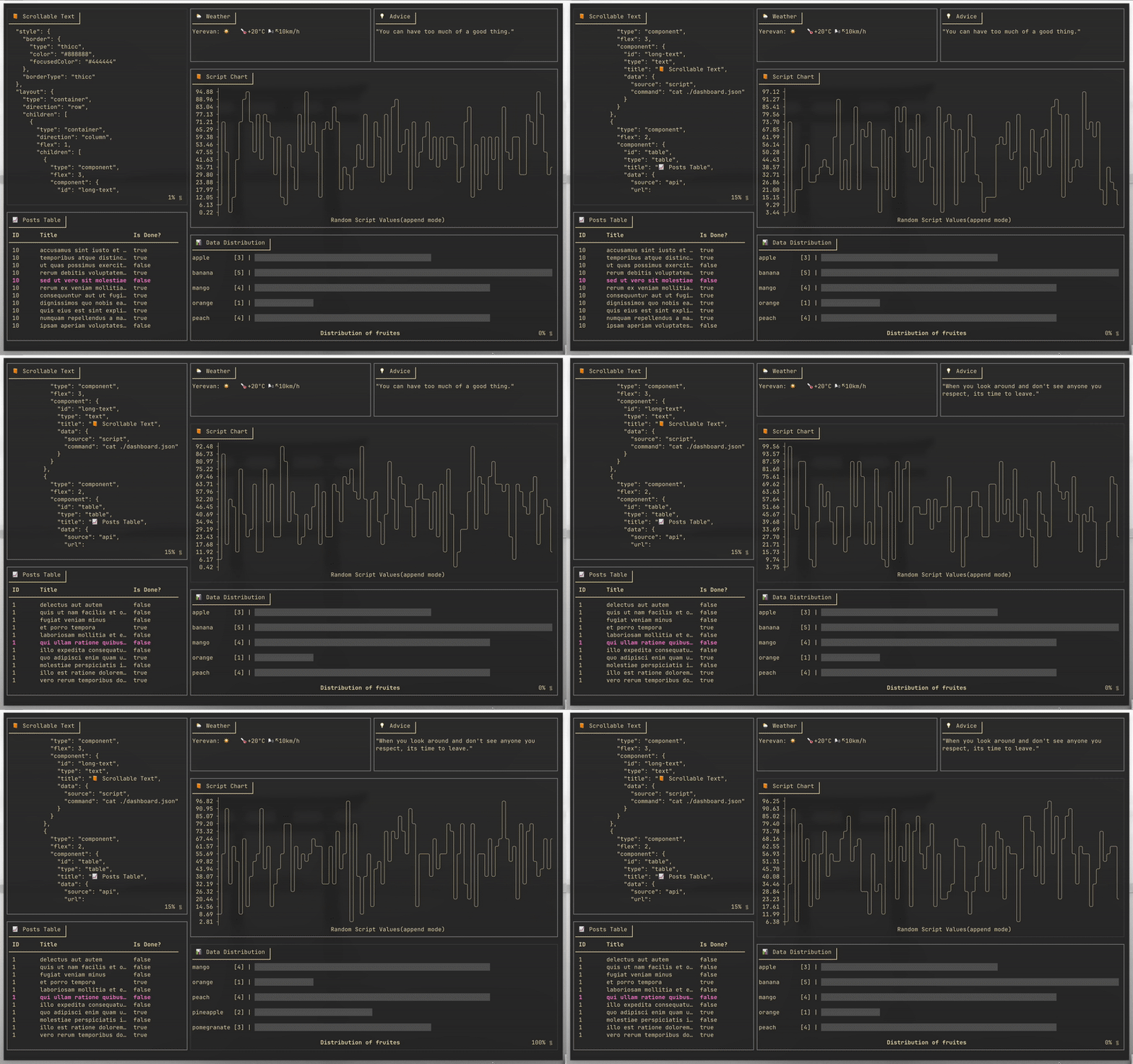
Dashbrew is a terminal dashboard builder that lets you visualize data from scripts and APIs right in your console, using a simple JSON configuration. Stay informed without leaving your terminal!

🚀 Installation
Using Go Install
Pull the latest release:
go install github.com/rasjonell/dashbrew/cmd/dashbrew@latest
Pin a specific version (any tag from the Releases page):
go install github.com/rasjonell/dashbrew/cmd/dashbrew@v1.1.0
go install github.com/rasjonell/dashbrew/cmd/dashbrew@v1.0.0
From Source
# Clone the repository
git clone https://github.com/rasjonell/dashbrew.git
cd dashbrew

# Build and install
go install ./cmd/dashbrew
Quick Start
- Create a simple dashboard configuration file(
dashboard.json):{ "style": { "border": { "type": "thicc", "color": "#cccccc", "focusedColor": "#474747" } }, "layout": { "type": "container", "direction": "row", "children": [ { "type": "component", "flex": 1, "component": { "type": "text", "title": "Hello Dashbrew", "data": { "source": "script", "command": "echo 'Welcome to Dashbrew!'" } } } ] } } - run:
dashbrew -c dashboard.json
Complete Documentation
For comprehensive documentation on all features, please refer to our GitHub Wiki:
Basic Examples
Display API Data
Show real-time data from an API:
{
  "type": "component",
  "component": {
    "type": "text",
    "title": "🌦️ Weather",
    "data": {
      "source": "api",
      "url": "https://wttr.in/<YOUR_CITY>?format=4",
      "refresh_interval": 60
    }
  }
}
Creating a ToDo List
Create a todo.txt file:
- finish work
+ laundry
+ dishes
Add it to your dashboard:
{
  "type": "component",
  "component": {
    "type": "todo",
    "title": "📋 My Todo List",
    "data": {
      "source": "./todo.txt"
    }
  }
}
Creating a Chart
Visualize Data with charts:
{
  "type": "component",
  "component": {
    "type": "chart",
    "title": "📊 System Metrics",
    "data": {
      "source": "script",
      "command": "echo '10\n25\n15\n30\n45'",
      "refresh_interval": 5,
      "caption": "CPU Usage (%)"
    }
  }
}
Create a Histogram
Show distributions with histograms:
{
  "type": "component",
  "component": {
    "type": "histogram",
    "title": "📊 Age Distribution",
    "data": {
      "source": "script",
      "command": "echo '\"18-24\": 45\n\"25-34\": 78\n\"35-44\": 52\n\"45-54\": 34\n\"55+\": 21'",
      "caption": "Users by Age Group"
    }
  }
}
Basic Navigation
Shift+ArroworShift+H/J/K/L: Move between componentsA: Add item (in todo lists)Space: Toggle item state (in todo lists)R: Refresh data for the focused componentCtrl+K: Open the action palette (lists every binding from every component, fuzzy filterable)Ctrl+C: Quit
Component Interactivity
Each component can declare a list of bindings that map a key chord to a shell action. Pressing the key when that component is focused runs the action; the same actions are also reachable via the global Ctrl+K palette.
{
  "type": "component",
  "component": {
    "id": "logs",
    "type": "text",
    "title": "📜 Logs",
    "data": { "source": "script", "command": "tail -n 50 ./app.log", "refresh_interval": 5 },
    "bindings": [
      {
        "key": "f",
        "label": "Show last 500 lines",
        "action": {
          "type": "replace_pane",
          "command": "tail -n 500 ./app.log",
          "output_as": "text"
        }
      },
      {
        "key": "c",
        "label": "Clear log file",
        "action": { "type": "fire_and_forget", "command": ": > ./app.log" }
      }
    ]
  }
}
Action types
fire_and_forget: runs the command in the background and discards its output. The pane stays unchanged. Good for “open weather.app”, “trigger refresh”, “clear logs”.replace_pane: runs the command, then replaces the pane’s content with its stdout until you reset. Scheduled refresh is paused while the action result is sticky. Press R to refetch the original data and resume the schedule, or Esc to just clear the action state without refetching.
Output rendering for replace_pane
output_as: "text"(default): stdout is shown as raw scrollable text.output_as: "inherit": stdout is parsed by the focused component’s existing data parser. So a chart action expects newline-separated numbers, a histogram action expectskey: countlines or a JSON object, a table action expects JSON rows, etc. Not supported ontodo(its data path is file-based).
Reserved keys
These keys are reserved by dashbrew and cannot be used as binding keys:
ctrl+c, ctrl+k, shift+up/down/left/right, H, J, K, L, a, A, r, R, esc
In addition, each component type has its own internal keys (e.g. space toggles a todo item, viewport-style components consume up/down/pgup/pgdown/home/end for scrolling). Bindings on a component cannot use that type’s internal keys. Both checks happen at config load time with a clear error.
timeout_seconds
Each action can declare timeout_seconds (default 30). The shell process is killed via context.WithTimeout and surfaces an error modal on timeout. Long-running stream commands (e.g. tail -f) are not supported yet; use a snapshot like tail -n 500 file.log instead.
Theming
Dashbrew ships with a small set of named themes (default, dracula, nord, gruvbox-dark, tokyo-night, catppuccin-mocha, solarized-light). Pick one from JSON:
{ "style": { "theme": "dracula" } }
Or set "theme": "auto" to detect the terminal’s background color (OSC 11) and pick a dark or light default.
Override at runtime without editing the config:
dashbrew -c dashboard.json -t nord
dashbrew --list-themes
Custom themes drop into $XDG_CONFIG_HOME/dashbrew/themes/*.json (or set DASHBREW_THEMES_DIR) and are picked up automatically. Each theme is a name plus a palette of role colors (background, foreground, dim, accent, success, warning, error, border, borderFocused). The same shape works for style.palette overrides at the dashboard or per-component level.
Versioning & Releases
Dashbrew follows Semantic Versioning. See the CHANGELOG for what shipped in each release and the Releases page for tag-by-tag notes.
@latest always points at the newest tag. To pin a release explicitly:
go install github.com/rasjonell/dashbrew/cmd/dashbrew@v1.1.0